
Document workflow automation uses software to move business documents through steps such as creation, data capture, review, approval, delivery, and storage. AI adds the ability to read documents, identify important details, and understand information that is not stored in fixed fields.
For example, a supplier sends an invoice by email. Instead of copying every detail into a spreadsheet, a workflow can read the file, extract the invoice number and total, check them against business rules, and send the document to the right person for approval. Only after the required checks should it update the accounting system.
The goal is not to let AI make every decision. It is to reduce repeated work while keeping errors, approvals, and business records under control.
What Is Document Workflow Automation?
Document workflow automation means using software to manage the steps a document follows from start to finish. These steps may include creating the file, collecting information, sending it to a reviewer, getting approval, updating another system, and saving the final copy.
Without automation, someone must remember where to send each document, what to check, and who needs to approve it. With automation, a defined trigger and business rules handle the repeatable steps. AI is useful when the document does not follow a fixed format. A scanned invoice, customer form, or contract may contain valuable information, but that information is not always easy to copy into a database. AI-based document processing can help turn it into fields a workflow can use.
Still, many document workflows need no AI at all. If a system already has clean data and a standard template, simple rules can generate and route the document more reliably and at a lower cost.
How Does AI Document Workflow Automation Work?
A complete workflow has more steps than reading a PDF. It needs to carry the document from its source to a useful, checked business outcome.
- Receive or create the document. A file arrives by email, upload, form, shared folder, or another business system. A document may also be generated from a template.
- Check the file. Confirm the file type, size, readability, and whether the same document has already been processed.
- Classify it. Identify whether the file is an invoice, purchase order, contract, application, or another supported type.
- Extract the required details. Use text extraction, OCR for scanned images, or an AI document processor to collect fields needed for the next step.
- Validate the data. Check required fields, dates, amounts, vendor records, and other business rules. Compare with trusted records where possible.
- Route exceptions for review. Unclear, missing, conflicting, or high-risk information goes to the appropriate person.
- Complete the approved action. Update a CRM or accounting system, create a task, send a document for signing, or generate the next file.
- Store the result and record what happened. Save the source file, status, decisions, reviewer, and any relevant error details.
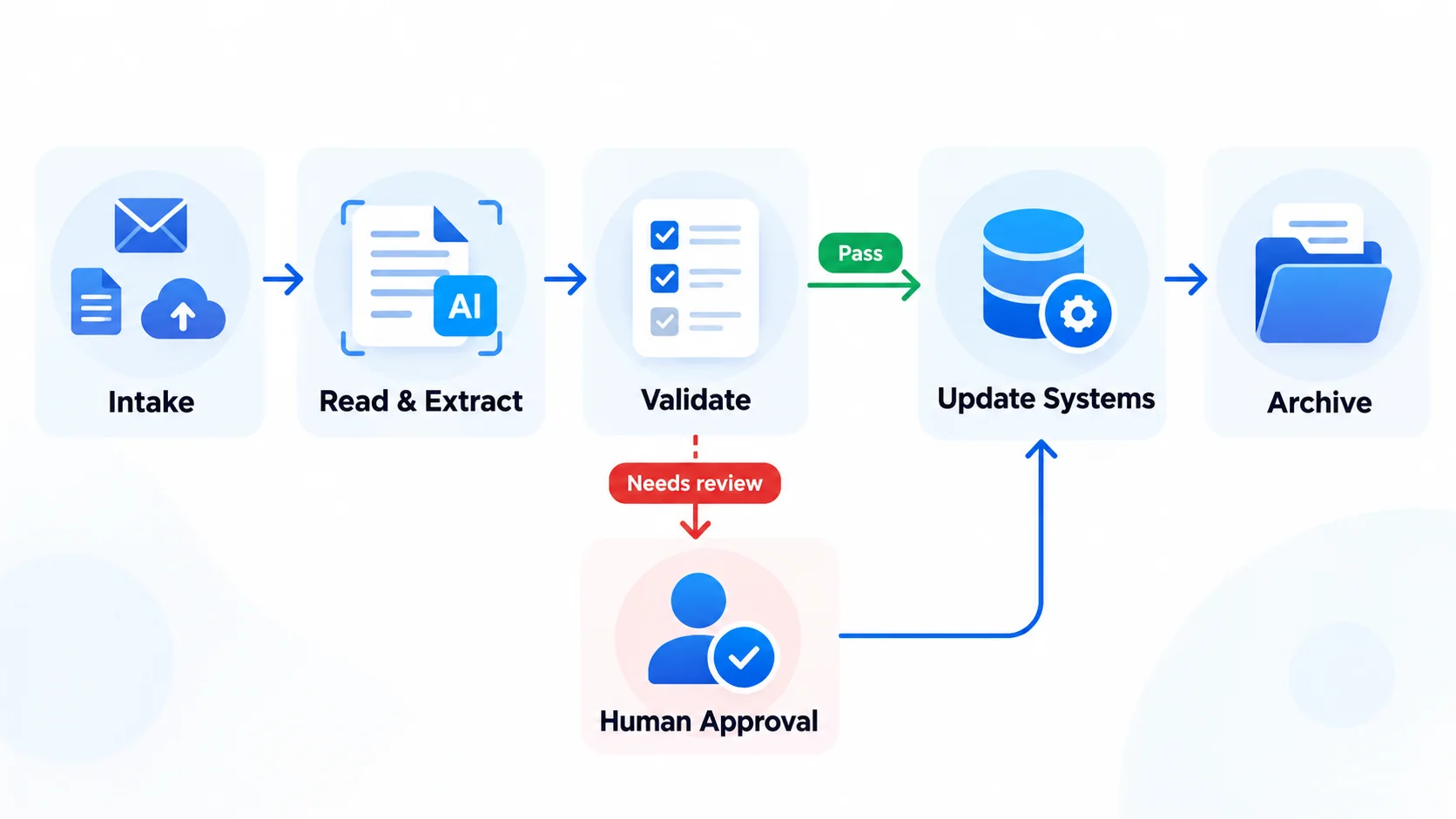
A simple way to picture it is:
Document Intake → Read or Generate → Validate → Approve if Needed → Update System → Archive
This separation matters because the AI may read the document correctly but still send it to the wrong place if the workflow rules are poor. A reliable design checks both the extracted information and the action that follows.
Document Workflow Automation vs Document Processing and Document Management
These terms are related, but they are not interchangeable.
| Term | Main Job | Example |
|---|---|---|
| Document management | Store, organize, find, and control files | Keep signed contracts in a shared system |
| Document processing automation | Read and extract information from documents | Get invoice date, supplier, and total from a PDF |
| Document workflow automation | Move documents and their data through a business process | Check an invoice, get approval, update accounting, and archive it |
| Intelligent document processing (IDP) | Use OCR, AI, or machine learning to classify and understand documents | Read different invoice layouts and identify line items |
Document processing may be one step inside a larger workflow. Document management may hold the files before and after that workflow. AI can help with reading and understanding, but routing, permissions, and approvals still need clear rules.
For example, Google Cloud Document AI documents how OCR, classification, and data extraction can turn files into structured information. That structured information still needs to be checked and passed to the correct business system.
Choose the Right Way to Read Each Document
One mistake is sending every file to the same AI model. Check what kind of file you have before paying for OCR or AI extraction.
| Document Type | Best First Step | When AI May Help |
|---|---|---|
| Structured electronic invoice (XML) | Read the structured fields and validate them | Only for unusual text or exception review |
| PDF with selectable text | Extract text and tables directly | Map details when layouts differ |
| Scanned PDF or phone photo | Run OCR and check image quality | Find fields and line items in the recognized text |
| Fixed-layout form | Use form fields, a template, or a layout-specific processor | Read handwriting or difficult fields if supported |
| Contract or statement of work | Extract text and retain page or clause references | Identify clauses and prepare a review summary |
Some invoices look like PDFs but include structured XML data inside them. For example, ZUGFeRD documentation describes hybrid PDFs with machine-readable invoice data. Where a supported structured version is available, read and validate it before extracting the same fields from the visible page.
For Microsoft AI Builder users, the model choice also matters. Microsoft documents fixed-template, general-document, and invoice options. Custom models may need labeled samples: Microsoft’s guidance specifies at least five examples per layout collection. That is a product-specific setup requirement, not a rule for every AI document tool.
Two Types of Document Workflows Businesses Can Automate
1. Incoming Documents: Read, Check, and Route
An incoming document workflow begins when your business receives a file. Examples include supplier invoices, purchase orders, customer forms, claims, or signed documents.
The main questions are: What kind of document is this? What information does it contain? Is it complete and correct? Who should handle it next?
Example: A supplier invoice arrives by email. The workflow reads the file, checks the total against a purchase order, asks a manager to review any mismatch, and records the approved result.
2. Outgoing Documents: Create, Approve, and Send
An outgoing workflow starts with information already saved in a CRM, form, or database. It uses that information to create a proposal, quotation, agreement, offer letter, or other document.
The main questions are: Which template should be used? Are the details complete? Who must approve the document? Where should the final version go?
Example: A deal reaches an approved stage in the CRM. The workflow fills a proposal template, sends the draft for review, creates the final PDF, and stores it against the customer record.
These two workflows should not be forced into one complex setup on day one. Start with the path that creates the most repeated work in your business.
Example: Create Customer Documents From a Template
Document automation does not always require AI. Suppose an approved customer record is added to Google Sheets. A workflow can create a welcome packet or proposal from a Google Docs template without asking a model to write it from scratch.
- Start with clean data: A new approved row contains the customer name, company, service, and assigned contact. Validate the required fields before moving on.
- Fill a template: Match sheet columns to document fields such as
{{client_name}},{{company}}, and{{service}}. - Create and name the file: Save the document in the correct Google Drive folder, using a stable customer or project ID to avoid duplicate folders and files.
- Review and deliver: Check that all fields were filled, ask for approval when needed, then email the document or make it available to the customer.
Both Zapier and Make can be used to connect sheets, templates, folders, and email. Zapier’s current Google Docs documentation describes its Create Document From Template action and the required double-curly-brace variable format. Check the chosen tool’s own field syntax before building.
Where should AI be used? Only when a task needs interpretation, such as turning an unstructured customer note into a draft summary. Keep approved prices, names, contract terms, and other fixed facts mapped from trusted fields. A model should not silently change them.
Practical Example: Automating Supplier Invoices
Imagine a small company receives supplier invoices as email attachments. A team member downloads each PDF, enters the details into a sheet, checks the amount, and asks a manager for approval.
Here is how the same process could be designed with AI and workflow automation.
Step 1: Receive the Invoice
An email trigger detects a new invoice attachment. The workflow saves the file under a unique document ID. It checks the file type and whether the same invoice number from the same vendor has already been recorded.
Step 2: Read the Required Fields
The processor extracts fields such as vendor name, invoice number, date, currency, purchase order number, line items, subtotal, tax, and total. Fields that cannot be read should stay blank or be marked as unknown. The system must not make up a value.
Here is a fictional example of the information a workflow might extract:
| Field | Illustrative Value |
|---|---|
| Vendor | Example Office Supplies |
| Invoice number | INV-1042 |
| Purchase order | PO-275 |
| Subtotal | $500.00 |
| Tax | $40.00 |
| Total | $540.00 |
These values are examples, not output from a tested AutomizeHub system.
Step 3: Check the Data Against Business Rules
Now the workflow checks facts that should not be left to AI judgment:
- Are the invoice number, vendor, date, and amount present?
- Does the subtotal plus tax match the total, allowing for the company’s rounding rules?
- Does the purchase order exist, and does the vendor match?
- Has this invoice number already been recorded for the same vendor?
- Does the amount require manager approval under company policy?
For the sample above, $500 plus $40 equals $540. That arithmetic can be checked with ordinary code. If the document instead shows $550 as the total, the workflow should flag the mismatch rather than quietly changing the amount.
Where invoice, purchase order, and goods-received records are available, a more complete workflow can compare all three before an approval decision.
Check the Vendor, Purchase Order, and Payment Details
Arithmetic is only one part of invoice validation. A more useful workflow checks the extracted details against trusted business records. For example:
- Vendor master: Does the supplier exist, and are the company name and approved payment details consistent?
- Purchase order: Does the PO reference exist? Do the items, unit prices, quantities, and currency match the order?
- Receipt record: If the business requires three-way matching, do the invoice, purchase order, and goods-received record agree?
- Tolerance: Does any allowed difference fall within a written company policy? A 5% tolerance used in a tutorial is only an example, not a standard every company should follow.
- Changed bank details: Does the invoice request payment to a different account? Stop and require independent verification through an approved channel.
Do not treat urgent wording, a believable PDF, or an AI summary as proof that payment details are safe. A successful extraction can still contain false or fraudulent instructions.
Step 4: Send Exceptions to a Human
An unreadable field, a duplicate, a mismatch, or an unusual charge can create a review task. The reviewer should see the original document, extracted details, and a clear reason for the alert.
Review needed: Invoice INV-1042. The calculated total does not match the printed total.
The reviewer can approve, reject, or correct the data. An AI-generated confidence score alone should not replace checks against the source document and trusted records.
Step 5: Update the System Only After Approval
After the required checks and approvals, the workflow can create a draft bill in accounting software, update a tracking sheet, or attach the invoice to a purchase record.
Important: Extracting an invoice is not permission to pay it. Payments and other financial actions should remain behind the business’s approval controls.
Step 6: Archive the Document and Record the Outcome
Finally, save the original file, checked data, status, reviewer, and timestamps. If an API call fails, record that failure so the team can retry safely without creating duplicate entries.
Example: AI Contract Review With Human Approval
A contract follows a different path from an invoice. The key job is not to collect totals. It is to help the legal or commercial team find clauses that may need attention, route the file, and record the final decision.
A practical example starts when a contract is added to a SharePoint library or another approved folder:
- Log the new file: Assign a document ID, version, owner, and status such as
received. - Extract and locate clauses: AI identifies the counterparty, value, payment terms, renewal terms, and other agreed review fields. Keep page or section references whenever possible.
- Apply contract review rules: Flag clauses such as uncapped liability, unexpected indemnity terms, auto-renewal, or payment terms outside the company’s approved policy.
- Produce a structured review result: Return a status, reasons, missing information, and source references rather than a free-form opinion alone.
- Route to an authorized reviewer: Legal or another responsible person checks flagged clauses and approves, rejects, or requests changes.
- Record history: Save the document version, reviewer, decision, comments, and timestamps. Only then move to signing, filing, or the next business step.
An illustrative review output could contain:
{
  "review_status": "needs_legal_review",
  "counterparty": "Example Supplier Ltd",
  "contract_value": null,
  "flag_reasons": ["unlimited liability clause"],
  "source_reference": "section 9.2",
  "next_action": "assign to legal reviewer"
}
The JSON is an example of a useful output shape, not a result from a tested AutomizeHub agent. A model’s confidence score is not proof that a contract is legally safe. The organization must decide which clauses require approval and who is authorized to approve them.
Microsoft’s Power Automate approvals documentation explains how approval requests can wait for authorized human decisions. For higher-risk contracts, do not auto-approve simply because an AI model says no problem was detected.
Other Document Workflow Automation Examples
| Business Process | What Can Be Automated | What Needs Careful Review |
|---|---|---|
| Customer onboarding | Collect forms, find missing details, create CRM tasks, save files | Identity checks, consent, sensitive details |
| Contracts | Fill approved templates, route for review and e-signature, store signed copies | Non-standard clauses, legal approval, final version |
| Purchase orders | Read order details, match vendor records, route for approval | Wrong prices, duplicate orders, spending limits |
| HR documents | Create offer letters, collect onboarding files, track missing forms | Personal data, salary details, access permissions |
| Claims and applications | Check completeness, organize supporting documents, assign reviewers | Disputed facts, policy decisions, regulated data |
Choose the first workflow based on document volume, time spent, error risk, and how clearly the process can be defined. A workflow that runs only once a month may not need an AI system.
What Are the Benefits of Document Workflow Automation?
The value depends on which manual steps are removed and which errors the workflow catches. Possible benefits include:
- Faster handoffs: Documents reach the next reviewer without someone forwarding each email.
- Less copying: Details that have already been checked can move into another system without being typed again.
- Clearer status: Teams can see whether a file is waiting for data, review, approval, or an API update.
- More consistent checks: The same rules can run for each supported document.
- Better records: The original file, corrections, and approval history can stay linked.
These outcomes are not automatic. A workflow with poor data, unclear ownership, or unreliable integrations can create more work. Test the complete process before measuring benefits.
Which Tools Do You Need?
You do not need every tool listed below. Choose the smallest setup that can complete the process safely.
| Tool Type | Role in the Workflow | Examples |
|---|---|---|
| Workflow automation | Connect apps, apply rules, manage routing and errors | n8n, Microsoft Power Automate, Make |
| OCR / document AI | Read PDFs and scans, classify files, extract fields | Google Cloud Document AI, Azure AI Document Intelligence, other approved services |
| Document creation / signing | Fill templates, collect approvals and signatures | PandaDoc, document template tools, e-signature services |
| Business system | Save approved records and start the next action | CRM, accounting system, ERP, database |
| Storage and review | Keep files and let people resolve exceptions | Approved cloud storage, review app, internal portal |
For a business already using Microsoft products, Microsoft’s document automation toolkit shows how document extraction, workflow steps, a review app, and a document queue can work together.
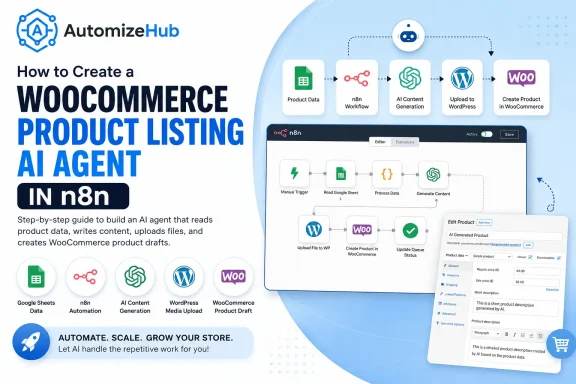
If your team uses several different apps, a workflow tool such as n8n may help connect them. The n8n Extract From File documentation explains how it converts supported binary files, including PDFs, into data a workflow can handle. Scanned documents may also require a suitable OCR service.
Before picking an AI service, check supported file types, language needs, data-handling terms, access controls, error handling, and cost per document or page. Do not choose a tool only because it has an AI label.
Zapier vs Make vs n8n vs Power Automate
The best tool depends on your document source, current apps, approval rules, data sensitivity, and maintenance capacity. No platform is the best choice for every document workflow.
| Tool | Good Starting Point | Check Before Choosing |
|---|---|---|
| Zapier | Simple app-to-app actions and template-based document creation | Required connectors, approval paths, task usage, and costs |
| Make | Visual scenarios with multiple branches and mapped data | Scenario complexity, error recovery, supported app actions, and costs |
| n8n | Custom API integrations, validation logic, and review routing | Hosting, workflow maintenance, security, and connector coverage |
| Power Automate + AI Builder | Microsoft 365, SharePoint, Power Apps, and approval-heavy processes | Licensing, document-model limits, and data governance |
If the job is only to turn a sheet row into a Google Doc, a simple template workflow may be enough. If the document must be checked against a vendor database, routed to several reviewers, and entered into an ERP, plan the full process first. The number of tools or AI agents is not a measure of quality.
How to Design a Document Workflow in n8n
n8n can connect the document source, extraction tool, business rules, approval step, and destination. You do not need an open-ended AI agent for every step. A fixed workflow with one document-reading step is often easier to test and maintain.
A suggested workflow design for incoming invoices is:
- Trigger: Gmail, form upload, shared folder, or webhook receives a file.
- File check: Confirm the file is supported, enforce size limits, and assign a document ID.
- Duplicate lookup: Check a unique document key and known invoice details.
- Text/OCR step: Extract usable text and document fields.
- AI extraction: Return a defined list of fields in structured data, marking anything unknown.
- Validation: Use Code or IF/Switch steps to check required fields and business records.
- Approval route: Pause for human review when rules fail or approval is required.
- System update: Create a draft or approved record through an authorized API.
- Archive and log: Save the result, including errors and review decisions.
For approvals that may take hours or days, use a workflow design that can pause and resume rather than keeping a manual step open. Also keep a separate error path. The n8n Error Trigger documentation explains how a linked error workflow can receive failure details.
If you are planning a larger AI system, start by mapping the business task before selecting the model. Our guide to building AI applications with a problem-first approach explains that process.
What Should a Document Workflow Save for Audit and Recovery?
Document automation should have visible states. Otherwise the team may not know whether a file was read, approved, posted, or left waiting after an error.
A useful status path is: Received → Extracted → Validated → Needs Review or Approved → Posted → Archived. Keep Failed as a separate recoverable state, not as a silent stop.
For each document, store a stable ID, original file reference, version or hash, processing status, extracted fields, validation problems, reviewer identity, final decision, and downstream record ID. For important decisions, retain the source page or clause that supports the result. Set a clear retention policy and restrict access to files and logs.
When an API times out, first check whether the destination already created the record. Retry with an idempotent key or a destination-side lookup, so the same invoice does not create two bills. Test this failure path before enabling unattended processing.
Common Mistakes and How to Avoid Them
Letting AI Approve Its Own Output
If AI reads an invoice and also decides whether its values are correct, the same mistake can pass through both steps. Use independent checks such as amount calculations, vendor lookups, and source-document review.
Skipping Duplicate Protection
Emails can arrive twice and workflows can retry after a timeout. Use an invoice key, document ID, or another suitable unique identifier before creating records. Repeated processing should not create repeated bills or payments.
Treating All Documents as the Same
A contract, invoice, and customer form have different fields, rules, and risks. Identify the document type before choosing what to extract or where to send it.
Sending Private Files to Tools Without Review
Documents may contain customer, employee, health, or financial information. Decide what data a tool truly needs, check the provider’s processing terms, limit access, and define retention and deletion rules. Do not send sensitive files to an unapproved service.
Following Instructions Hidden Inside Documents
A document is input data, not a trusted instruction source. A PDF or email may contain text telling an AI assistant to ignore rules, share information, or change the destination. The workflow should treat that text as document content, not as permission to take actions. Keep allowed actions and destinations fixed outside the document and require approval for sensitive changes.
Missing Approval and Failure Paths
A successful AI response does not mean the CRM or accounting update succeeded. Keep separate statuses for extracted, needs review, approved, posted, and failed. Log errors and make retries safe.
Using AI Where a Simple Rule Is Enough
Basic arithmetic, required fields, approval limits, and duplicate checks do not need a language model. Keep those steps predictable. Use AI where the document’s language or layout makes fixed rules difficult.
How to Test Document Workflow Automation Before Going Live
Start with a small test set of fictional or approved, redacted documents. Do not begin with live payments, signed contracts, or private customer files.
| Test Document | Expected Workflow Behavior |
|---|---|
| Clean invoice with all required fields | Extract, validate, then move to the approved next step |
| Missing invoice number | Mark missing field and request review |
| Subtotal and total do not match | Flag the mismatch; do not post automatically |
| Same invoice sent twice | Avoid creating a duplicate record |
| Poor-quality scan | Flag unreadable details and require review |
| Unknown supplier | Hold for vendor verification |
| Approval required by company policy | Wait for an authorized person |
| Accounting API unavailable | Log failure and retry safely without duplicating the bill |
| PDF contains embedded structured invoice data | Read and validate the supported structured data before OCR |
| Invoice requests a changed bank account | Stop posting/payment; request independent verification |
| Contract with an unexpected liability clause | Flag the section and route to an authorized reviewer |
| Document contains instructions aimed at the AI | Treat them as file content, not permission to change workflow behavior |
For every test, compare extracted fields with the source document and record the final action. If the workflow makes a mistake, identify whether the cause was poor OCR, wrong AI extraction, a missing rule, or a failed integration.
Measure field accuracy separately from workflow success. A document might be read correctly but posted to the wrong record. Or extraction might miss one field while human review prevents any incorrect accounting update. Track both the field-level result and whether the final action was correct and authorized.
How to Measure Results and Costs
Do not measure success only by how quickly AI reads a page. Measure the full document process from arrival to a correct final outcome.
| Measure | Why It Matters |
|---|---|
| Time to complete each document | Shows the full turnaround time, including approval |
| Manual touches per document | Shows how often people must step in |
| Fields corrected by reviewers | Shows extraction quality |
| Exception and rework rate | Shows how often processing needs fixing |
| Duplicate or failed records | Shows operational reliability |
| Cost per completed document | Shows whether the system is economical |
| Field-level extraction accuracy | Shows whether key values match the original document |
| Correct and authorized posting rate | Shows whether approved results reach the right system safely |
Include OCR or AI usage, automation runs, storage, human review time, and ongoing maintenance when estimating cost. A low AI API cost does not help much if the team still needs to correct every file.
Record the same measures before and after a controlled rollout. That gives your business a fairer way to judge whether automation is worthwhile.
When Should You Build a Custom Workflow?
A standard document tool may be enough when you only need templates, signatures, reminders, or file approvals inside one platform.
A custom workflow becomes more useful when you need documents to move between several systems, follow unusual approval rules, match records from a database, or handle different document types with separate review paths.
Before building, answer four questions:
- Which document type causes the most repeated work?
- What decision must happen after the file is read or created?
- Which mistakes would cause financial, legal, or customer problems?
- Where must the final approved data and file be saved?
If those answers are clear, start with one document type and one destination. Add more documents and integrations only after the first workflow is reliable.
Build Your Document Workflow with AutomizeHub
Every business handles documents differently. One team may need supplier invoices checked before accounting. Another may need customer forms reviewed and saved in a CRM. A third may need proposals created from approved data.
AutomizeHub works on custom AI agents, n8n workflows, and API integrations. We can help plan a document process that connects the tools your team already uses, with clear checks and human review where needed.
Start with the document, the current manual steps, and the action that should happen next. That makes it easier to decide whether AI is needed and what should stay under human control.
Discuss Your Document Workflow with AutomizeHub
Frequently Asked Questions
What is document workflow automation with AI?
It is the use of workflow software and AI to create or read business documents, check important details, route them for approval, update connected systems, and store the result. AI is mainly useful for information that is difficult to read with fixed rules.
What is the difference between OCR and AI document processing?
OCR turns printed or scanned text into machine-readable text. AI document processing can go further by identifying the document type and extracting fields such as names, dates, totals, and line items. Important fields still need validation.
Can document workflow automation work with PDFs and email?
Yes. A workflow can start when an email arrives with an attachment or when someone uploads a PDF. The file is then checked, read, routed, and stored according to the business process.
Can n8n automate invoice processing?
n8n can connect an invoice source to file extraction, AI or OCR services, validation rules, approval steps, and a business system. The exact setup depends on file types, accounting software, and the checks required.
Does every document need AI?
No. Fixed templates and structured forms can often be handled with simple automation. AI is more useful when documents have different layouts, scanned text, or information written in natural language.
Should AI approve or pay invoices automatically?
AI can help prepare an invoice for review, but payments and other high-impact financial actions should follow company rules and authorized approvals. A model’s answer alone is not a safe payment control.
Do I need a custom AI model for document automation?
Not always. Start with structured fields, templates, or a prebuilt document processor when those meet the need. A custom model may help with special layouts or fields, but it brings training, testing, and maintenance work.
Can AI review contracts without a lawyer?
AI can help identify clauses and prepare a review package. It should not replace the authorized legal decision for important contract terms. Keep the source document, risk reasons, and human approval trail.
How do you know whether document automation is working?
Track total processing time, manual corrections, review rate, errors, duplicate records, and cost per completed document. Compare these with the earlier manual process using the same types of documents.
Final Thoughts
The best document workflow is not the one with the most AI steps. It is the one that moves a document from start to finish without losing information or control.
Use rules for clear checks, AI for difficult document content, and people for exceptions and important approvals. Start small, test real failure cases with safe documents, and expand only when the results are reliable.


No Comments